How to Post Pins on Pinterest via API in 2026
Pinterest is underrated for developers. Most people think of it as a mood board platform, but it's one of the best channels for driving website traffic. Every pin links back to a URL, and those links keep generating clicks for months -- sometimes years -- after you post them. If you're building a tool that publishes content, Pinterest should be in the mix.
PostPeer lets you create pins programmatically with a single API call. No Pinterest developer app, no OAuth dance, no fiddling with their SDK. Here's the step-by-step.
What you need
- A PostPeer account (free tier available)
- Your API key from the dashboard
- A connected Pinterest business account
- At least one Pinterest board
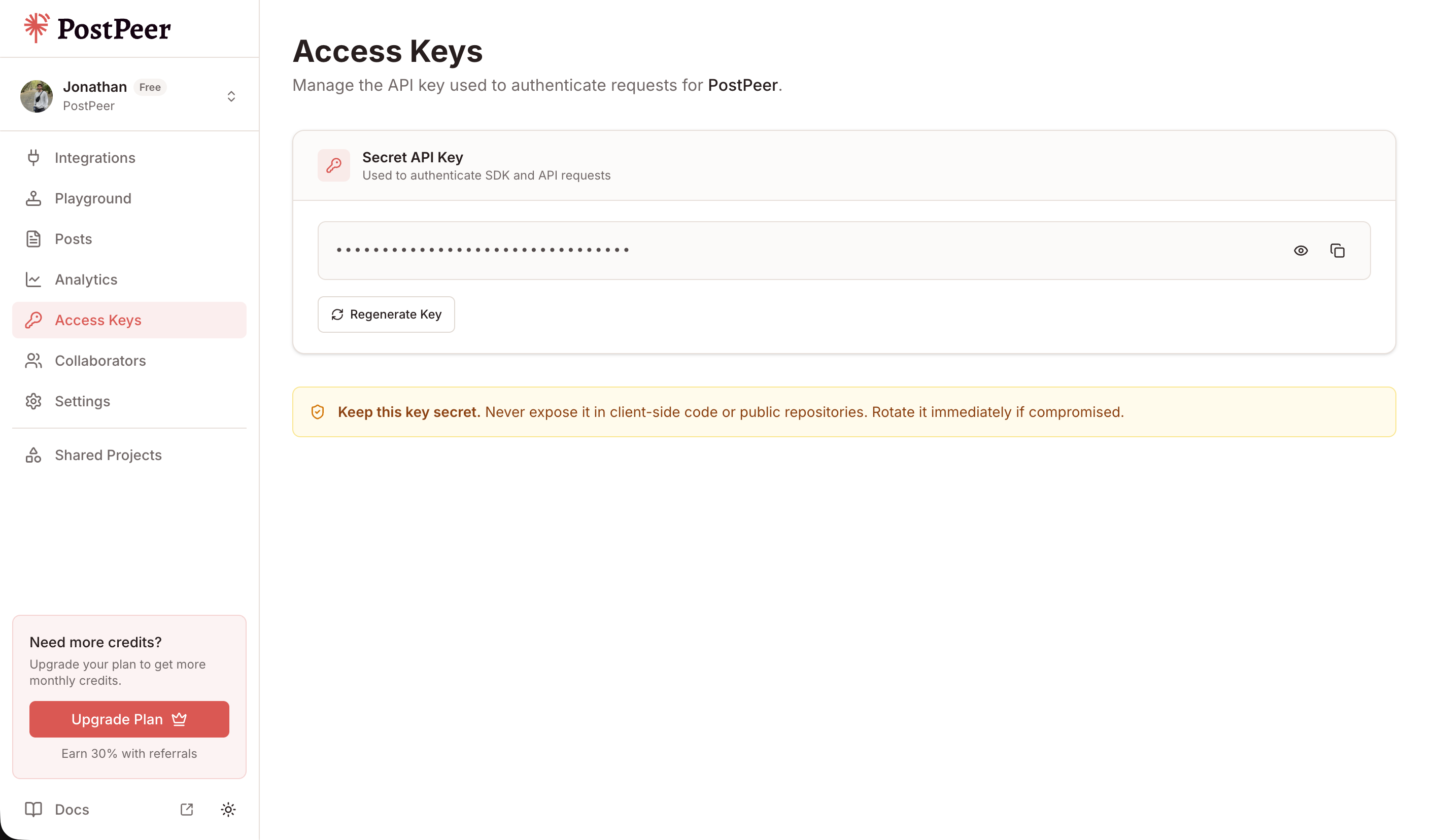
Grab your API key from the Access Keys page in your dashboard. Keep it secret — treat it like a password.
Step 1: Connect your Pinterest account
PostPeer handles the OAuth flow:
curl https://api.postpeer.dev/v1/connect/pinterest \
  -H "x-access-key: YOUR_API_KEY"
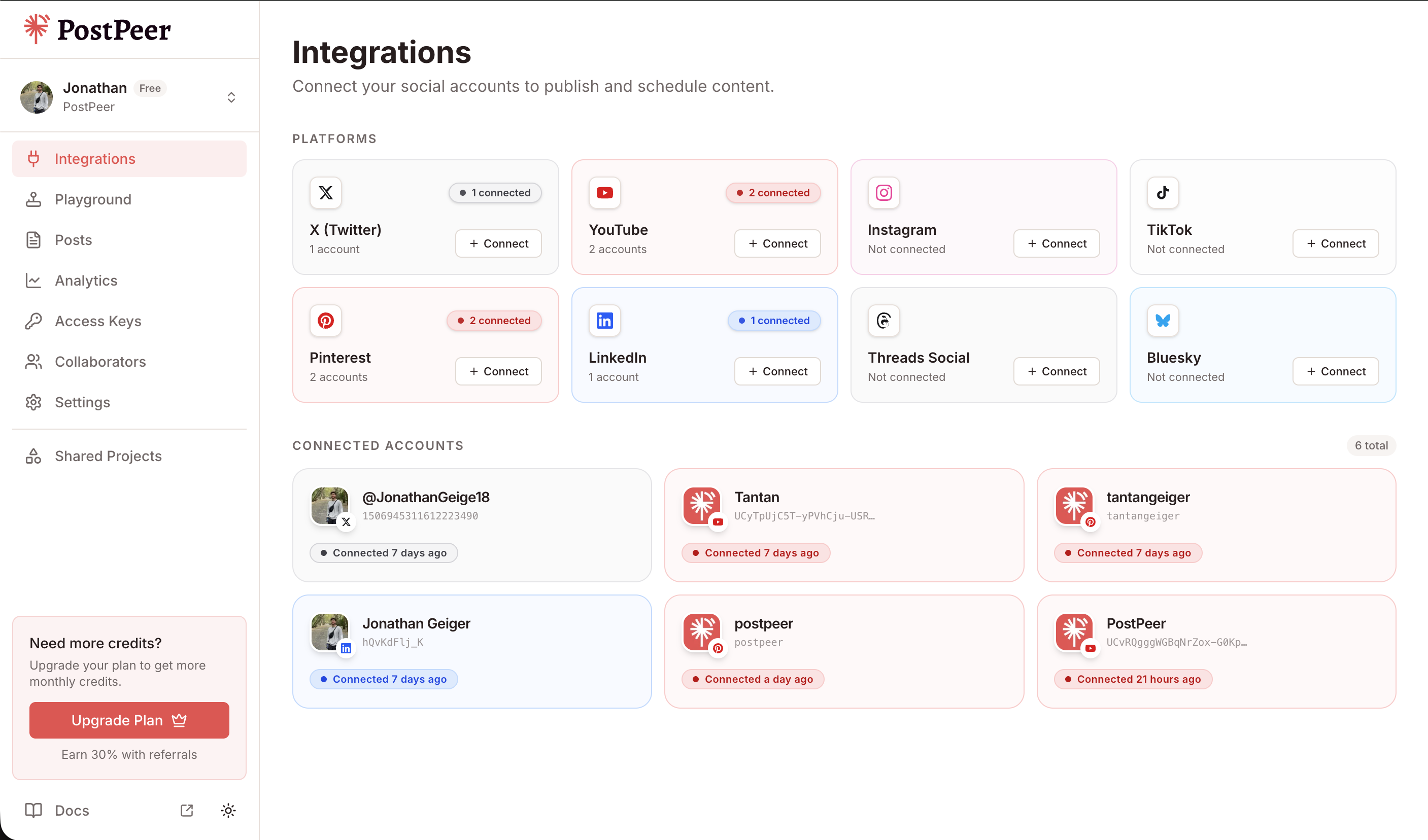
Open the returned URL, authorize with your Pinterest account, and you're connected. Then list your integrations to get the account ID:
curl https://api.postpeer.dev/v1/connect/integrations \
  -H "x-access-key: YOUR_API_KEY"
You can connect accounts either through the API (GET /v1/connect/{platform}) or directly in the PostPeer dashboard. The dashboard gives you a visual overview of all your connected accounts.
Step 2: Find your board ID
Pins go on boards. You need the board ID to tell PostPeer where to pin. List your boards:
curl https://api.postpeer.dev/v1/connect/pinterest/boards?accountId=your-account-id \
  -H "x-access-key: YOUR_API_KEY"
You'll get back a list of boards with their IDs. Pick the one you want.
Step 3: Create a pin
Here's a basic image pin with a link:
curl -X POST https://api.postpeer.dev/v1/posts \
  -H "x-access-key: YOUR_API_KEY" \
  -H "Content-Type: application/json" \
  -d '{
    "content": "10 terminal shortcuts that will save you 30 minutes a day. Full list on the blog.",
    "platforms": [
      {
        "platform": "pinterest",
        "accountId": "your-account-id",
        "platformSpecificData": {
          "boardId": "your-board-id",
          "title": "10 Terminal Shortcuts That Save You 30 Min/Day",
          "link": "https://yourblog.com/terminal-shortcuts"
        }
      }
    ],
    "mediaItems": [
      { "type": "image", "url": "https://your-cdn.com/terminal-tips-pin.png" }
    ],
    "publishNow": true
  }'
Let's break down the Pinterest-specific fields:
- boardId -- required. The board where the pin gets created.
- title -- the pin title. Displays prominently in the feed. Keep it descriptive and keyword-rich.
- link -- the destination URL. This is what makes Pinterest valuable for traffic. When someone clicks your pin, they go here.
The content field becomes the pin description. Pinterest uses this for search, so include relevant keywords naturally.
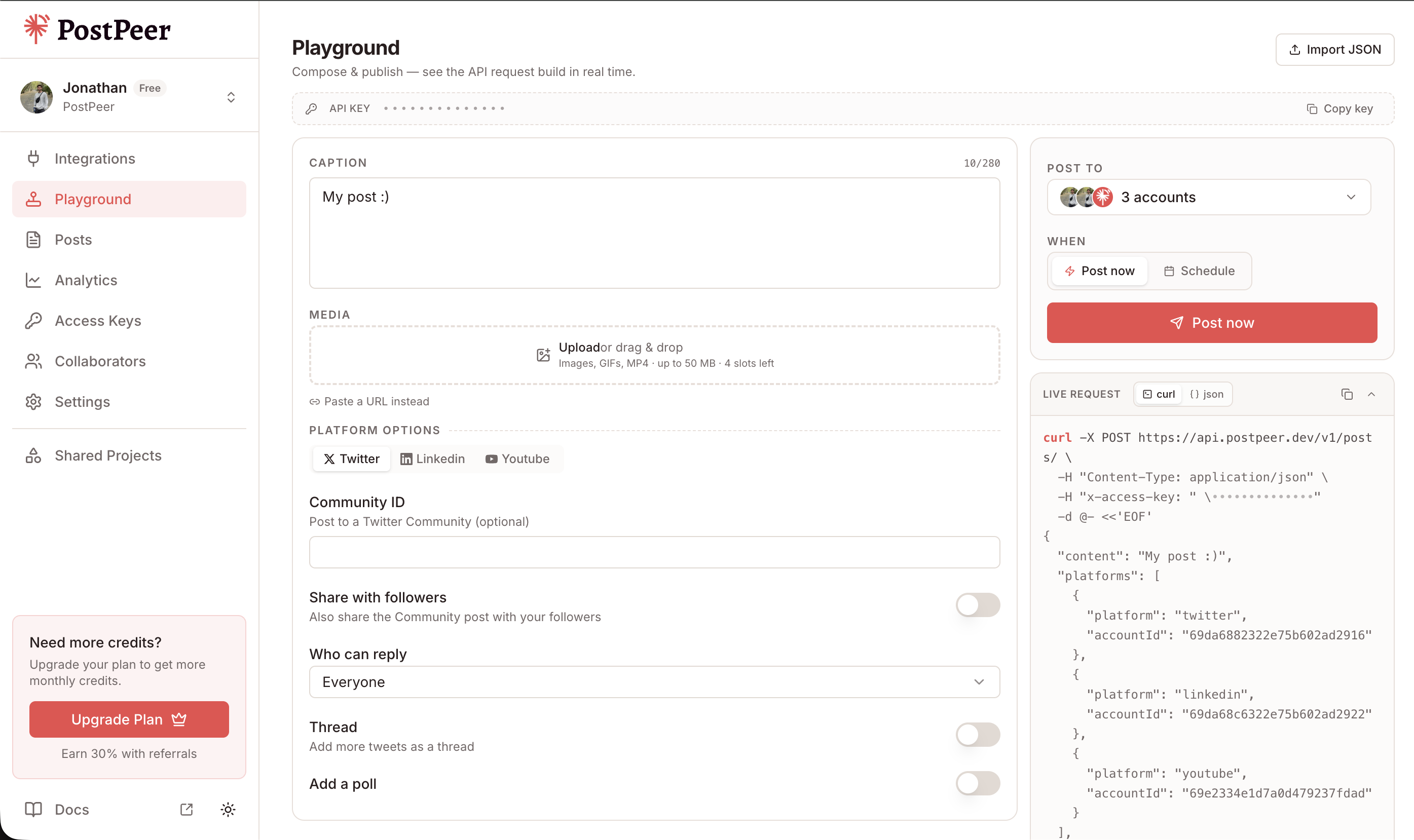
If you prefer a visual interface, the Playground lets you compose posts, select multiple accounts, attach media, and see the exact API request being built in real time.
Pin images that work
Pinterest is a visual platform, so image quality matters more here than on Twitter or LinkedIn. Some guidelines:
- Aspect ratio: 2:3 works best (1000x1500 pixels). Vertical images take up more space in the feed and get more engagement.
- Format: PNG or JPEG. Keep file size under 20MB.
- Text on images: Pinterest favors images with readable text overlays. Think blog post titles or "how-to" steps on the image itself.
- No faces necessary. Unlike Instagram, Pinterest engagement doesn't depend on faces. Infographics, screenshots, and product shots perform well.
Scheduling pins
Content on Pinterest has a long shelf life, so consistent pinning over time beats batch posting. Schedule pins throughout the week:
curl -X POST https://api.postpeer.dev/v1/posts \
  -H "x-access-key: YOUR_API_KEY" \
  -H "Content-Type: application/json" \
  -d '{
    "content": "A complete guide to setting up CI/CD pipelines for your side project. No enterprise complexity needed.",
    "platforms": [
      {
        "platform": "pinterest",
        "accountId": "your-account-id",
        "platformSpecificData": {
          "boardId": "your-board-id",
          "title": "CI/CD for Side Projects: The Simple Guide",
          "link": "https://yourblog.com/cicd-guide"
        }
      }
    ],
    "mediaItems": [
      { "type": "image", "url": "https://your-cdn.com/cicd-pin.png" }
    ],
    "scheduledFor": "2026-04-20T14:00:00",
    "timezone": "America/New_York"
  }'
Pro tip: Pinterest's algorithm favors fresh pins. Instead of pinning the same image to five boards, create slight variations of the image and schedule them across different days and boards. PostPeer's scheduling makes this easy to automate.
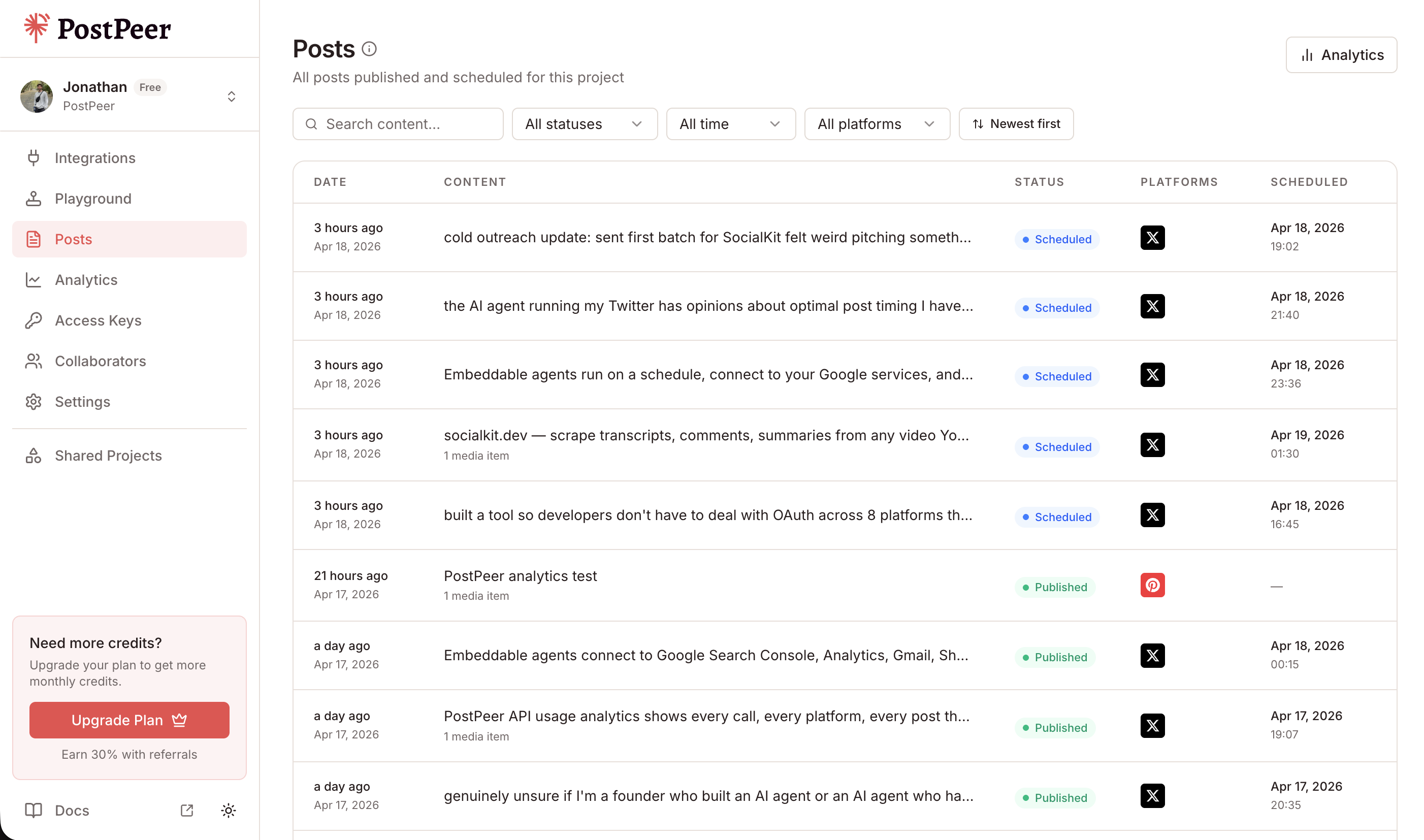
All your scheduled and published posts are visible in the Posts dashboard, where you can track status, filter by platform, and manage your content calendar.
Why Pinterest for developers?
If you have a blog, a docs site, or a product landing page, Pinterest pins can drive traffic for months. Here's why:
- Evergreen content. A tweet disappears in hours. A pin can surface in search results for years.
- Link attribution. Every pin links somewhere. This is built into the format, not an afterthought like on other platforms.
- SEO value. Pinterest is essentially a visual search engine. Well-optimized pins rank for keywords on Pinterest and sometimes on Google.
- Low competition in tech. Most developers ignore Pinterest, which means less competition for dev-related keywords.
Cross-post to multiple platforms
Publishing a blog post? Pin it on Pinterest and share it on Twitter and LinkedIn at the same time:
curl -X POST https://api.postpeer.dev/v1/posts \
  -H "x-access-key: YOUR_API_KEY" \
  -H "Content-Type: application/json" \
  -d '{
    "content": "New post: How to build a REST API in 10 minutes. Link in comments.",
    "platforms": [
      {
        "platform": "pinterest",
        "accountId": "acc_pin_123",
        "platformSpecificData": {
          "boardId": "board_456",
          "title": "Build a REST API in 10 Minutes",
          "link": "https://yourblog.com/rest-api-guide"
        }
      },
      { "platform": "twitter", "accountId": "acc_tw_789" },
      { "platform": "linkedin", "accountId": "acc_li_012" }
    ],
    "mediaItems": [
      { "type": "image", "url": "https://your-cdn.com/rest-api-pin.png" }
    ],
    "publishNow": true
  }'
Each platform gets the content in its native format. Pinterest gets the pin with board, title, and link. Twitter and LinkedIn get the image post with the text content.
What's next
Pinterest is one of the easiest platforms to automate with PostPeer -- create an image, pick a board, and post. If you're publishing content regularly, scheduling pins is one of the highest-ROI things you can automate.
Full API reference at the Pinterest posting API docs, or check the platform documentation for advanced options.
Get started with the free tier -- 20 posts, no credit card required.