How to Let Claude Schedule Your Social Media Posts
You can now connect Claude Code or any AI agent to PostPeer and have it handle your entire posting workflow. Write a prompt, and it schedules posts across all your platforms.
Here is how to set it up.
Step 1: Go to postpeer.dev/agent
Head to postpeer.dev/agent. This is where you can connect PostPeer to your AI tools, either via MCP or Claude Code Skills.
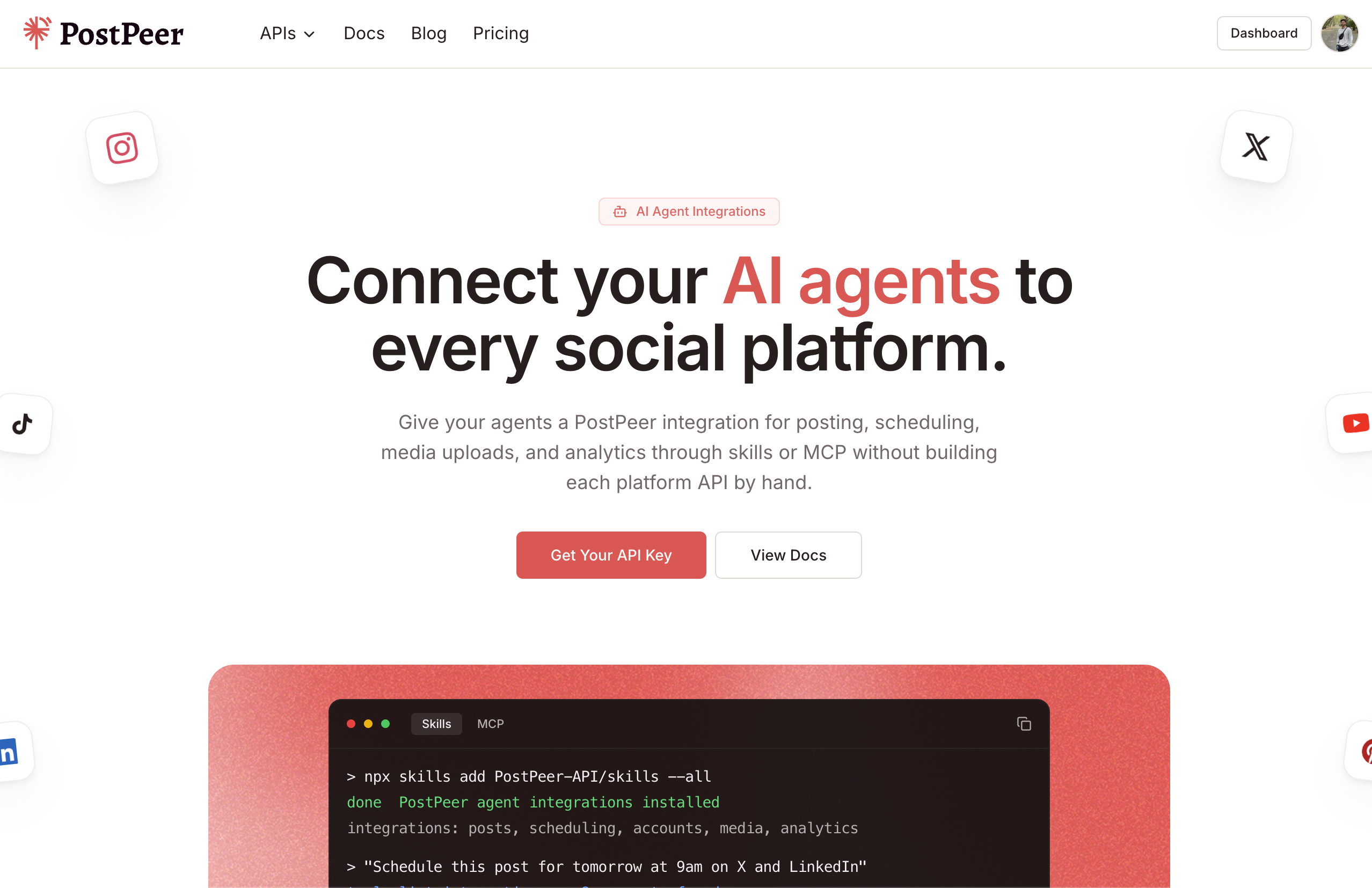
Option A: MCP (works with Claude Desktop, Cursor, and more)
Copy the MCP config snippet from the page.
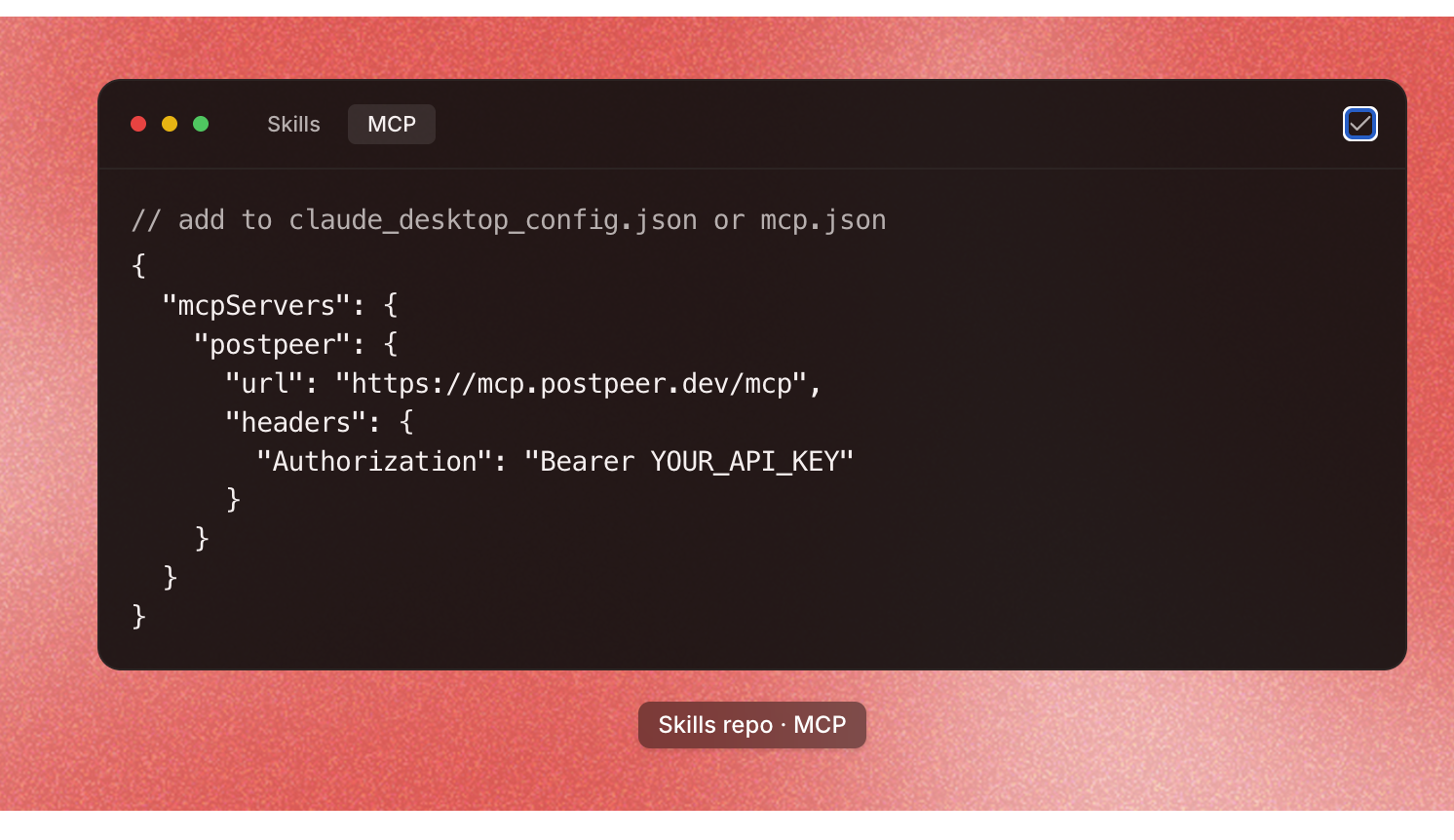
Add it to your claude_desktop_config.json or mcp.json:
{
  "mcpServers": {
    "postpeer": {
      "url": "https://mcp.postpeer.dev/mcp",
      "headers": {
        "Authorization": "Bearer YOUR_API_KEY"
      }
    }
  }
}
Then paste it into Claude and tell it to connect. Claude will confirm and you are ready to post.
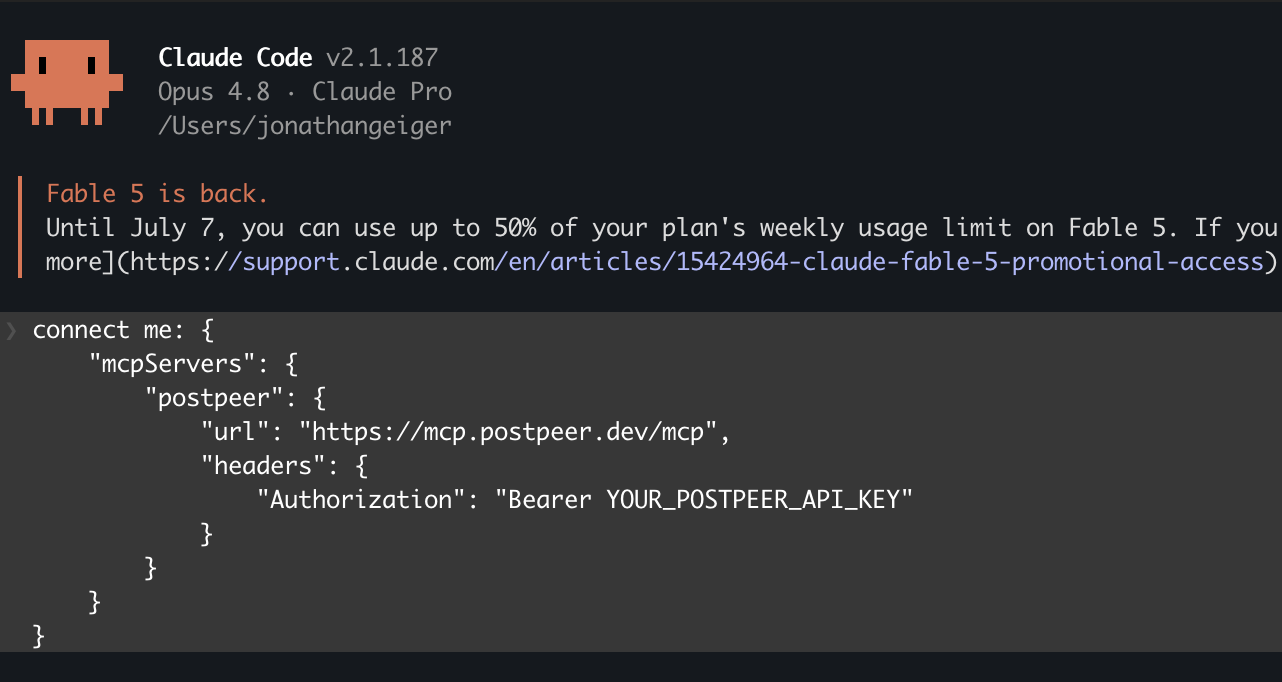
From here you can say things like:
- "Write me a week of content for my LinkedIn and schedule it"
- "Post this to my Twitter right now"
- "Schedule 30 posts spread across the next month"
Claude handles the writing, scheduling, and publishing. No switching apps.
Option B: Claude Code Skills
If you use Claude Code in the terminal, install the PostPeer skills:
npx skills add PostPeer-API/skills --allSkills repo: github.com/PostPeer-API/skills
This gives Claude Code direct access to PostPeer actions as terminal skills. You can also extend this with other tools, for example adding a Gemini API key to generate images as part of your workflow.
The result
A full calendar of scheduled content, created by your AI agent.
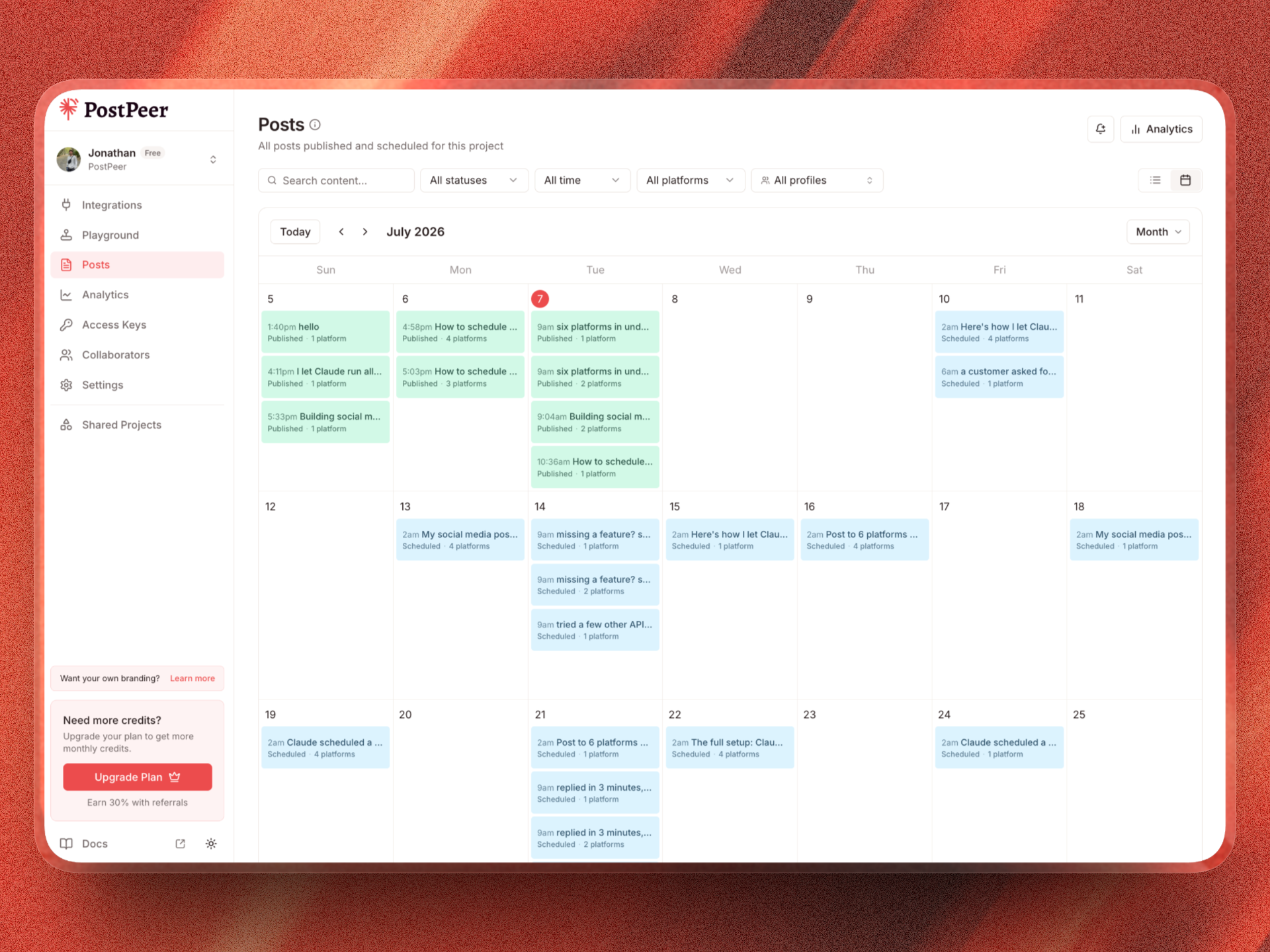
PostPeer handles the platform APIs, Claude handles the thinking. Get started at postpeer.dev/agent.