How to Automate Pinterest Pin Generation and Posting With n8n
Pinterest rewards consistency. The accounts that win are the ones pinning fresh, on-brand images day after day, week after week. The problem is that designing every pin by hand kills the schedule, and reusing the same image across boards trips Pinterest's freshness signals.
In this post I'll show you how Templated automated their Pinterest pin generation and posting end to end, and how you can copy the same workflow for your own account. Product data goes into a Google Sheet, custom pin images come out the other side, and Pinterest gets a steady drip of fresh pins on schedule. The whole thing runs in n8n with zero code, three tools, and one afternoon of setup.
Templated wrote up their version too if you want to see it from their angle, including a reusable n8n blueprint you can drop your API keys into.
The pipeline at a glance
Seven n8n nodes, in order:
- Trigger. Manual or scheduled.
- Google Sheets. Reads rows of pin data (image URL, title, description, board target, link).
- Loop Over Items. Processes one row at a time.
- Templated. Generates a custom pin image by mapping spreadsheet columns into a pre-designed template's layers.
- Wait (60s). Buys breathing room before hitting Pinterest.
- PostPeer. Posts the rendered image to Pinterest with the right board ID and link.
- Google Sheets (update). Writes the resulting Pinterest URL back into the sheet so you have an audit trail.
The Sheet is the brain. Drop a new row in, the workflow does the rest.
Why this stack
Three tools, each doing one thing well.
Templated handles the design step. You build a pin layout once in their editor (background image, headline text, logo, accent shape, whatever) and turn each layer into a variable. Their API takes a JSON object of layer values and returns a rendered PNG URL. In Templated's own setup the background image comes from Cloudinary and the text comes from Sheet columns, but anything URL-addressable works. Each row in your Sheet produces a visually distinct pin without any manual design work. Templated gives you 50 free credits to test the flow end to end.
n8n is the connective tissue. Every node above is a drag-and-drop step in n8n's editor. No deployments, no servers, just a workflow file you can clone, edit, and re-run. If you've never used n8n before, the self-hosted version is free and runs in Docker.
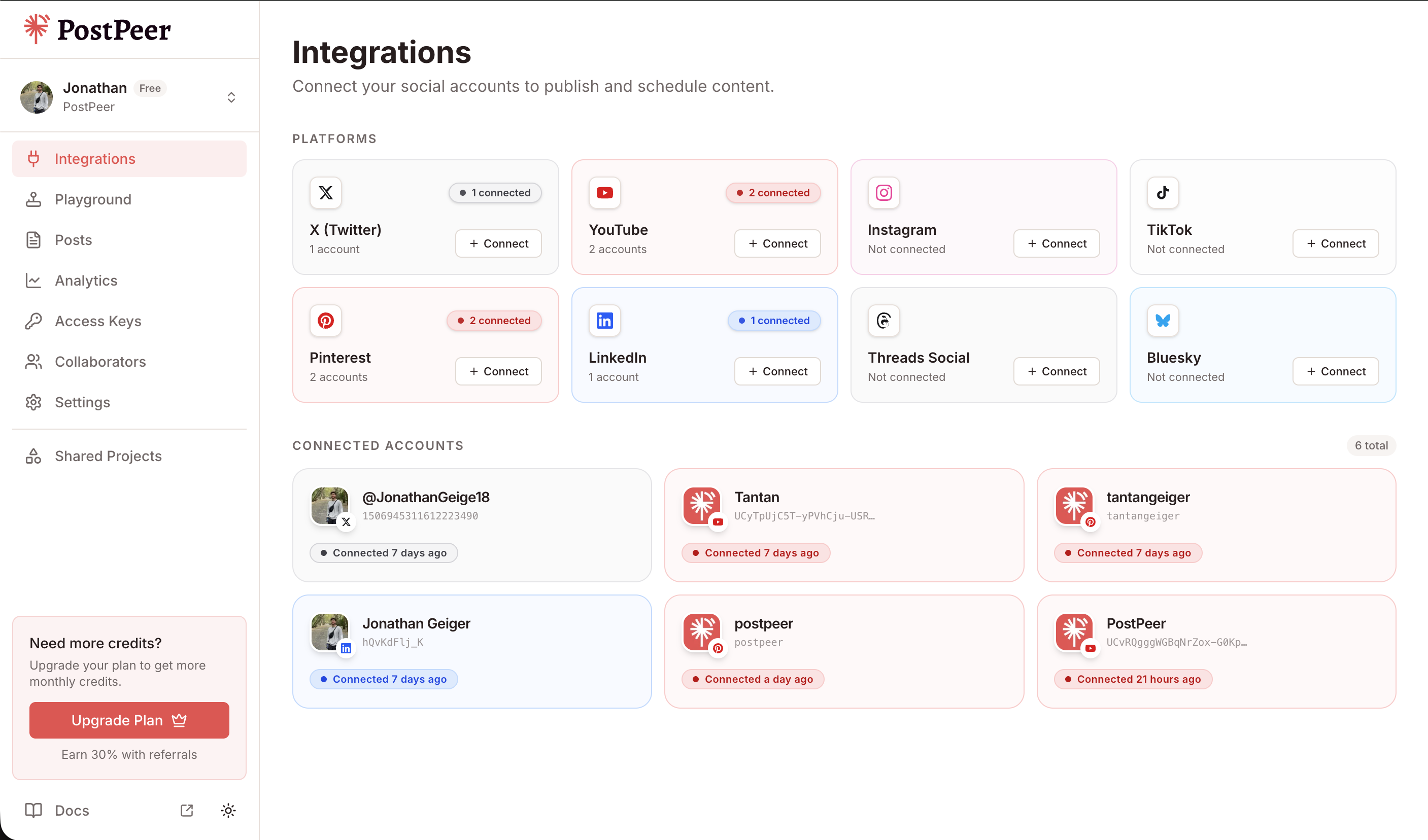
PostPeer is the publishing layer. Pinterest's official API requires a developer app, OAuth setup, and per-platform quirks. PostPeer wraps all of that. You connect Pinterest once in the integrations dashboard, grab your account ID and board ID, and from then on it's one HTTP call to publish a pin.
Building it: the n8n walkthrough
You'll need accounts on Templated, n8n (cloud or self-hosted), and PostPeer, plus a Pinterest business account connected inside PostPeer.
1. Set up the Sheet
Make a Google Sheet with one row per pin. The columns you'll need:
image_url(the source image stored in Cloudinary or any CDN)title(overlay headline)subtitleorprice(secondary text on the pin)pinterest_link(where the pin should send clicks)pinterest_post_url(left blank, written back at the end)
2. Read the Sheet
Drop in a Google Sheets node with the Get Row(s) in Sheet operation. Authenticate, pick the spreadsheet, and pull every row. Pipe the output into a Loop Over Items node so each pin is handled independently.
3. Generate the image with Templated
Add the Templated node (or use a generic HTTP Request node hitting https://api.templated.io/v1/render). Pick the template you designed and map each layer to a Sheet column:
image_layer→{{ $json.image_url }}title_layer→{{ $json.title }}subtitle_layer→{{ $json.price }}
Templated returns a url field with the rendered PNG. That URL is what you'll hand to PostPeer.
4. Wait 60 seconds
This is the unsexy node that makes the workflow actually work. Pinterest is aggressive about rate limiting and bot detection. Posting 50 pins in 50 seconds is a great way to get your account flagged or temporarily locked. A Wait node set to 60 seconds between iterations keeps you well under the threshold. It feels slow when you're testing with two rows, but it's the difference between a pipeline that runs every day and one that gets your account suspended in week two.
5. Post to Pinterest with PostPeer
Add an HTTP Request node pointed at POST https://api.postpeer.dev/v1/posts with header x-access-key: YOUR_POSTPEER_KEY. Body:
{
  "content": "{{ $json.title }}. {{ $json.subtitle }}",
  "platforms": [
    {
      "platform": "pinterest",
      "accountId": "YOUR_PINTEREST_ACCOUNT_ID",
      "platformSpecificData": {
        "boardId": "YOUR_BOARD_ID",
        "title": "{{ $json.title }}",
        "link": "{{ $json.pinterest_link }}"
      }
    }
  ],
  "mediaItems": [
    { "type": "image", "url": "{{ $node['Templated'].json.url }}" }
  ],
  "publishNow": true
}
Two IDs to fetch ahead of time, both via simple GET requests against the PostPeer API:
- Account ID:
GET /v1/connect/integrationsreturns every connected account. - Board ID:
GET /v1/connect/pinterest/boards?accountId=...lists every board on that account.
If you'd rather skip the API calls, both IDs are visible inside the PostPeer integrations dashboard once Pinterest is connected.
The full Pinterest payload shape is documented in the Pinterest posting guide.
6. Write the result back
The PostPeer response includes the live Pinterest URL. Add a final Google Sheets node with the Update Row operation and write that URL into the pinterest_post_url column for the row you just processed. Now your Sheet doubles as a content log.
What you end up with
Pinterest stops being a manual job and becomes a content pipeline. Add a row, get a pin. Add 100 rows, get 100 pins, each one a unique image, posted at a safe cadence, fully tracked in the same Sheet you started from. The same shape works for any platform PostPeer supports, so the moment you want to extend the flow to LinkedIn carousels or Instagram graphics, you swap the platform field and reuse the rest.
For e-commerce shops, affiliate sites, or anyone with a product catalog that could be turned into pins, this is one of the higher-leverage automations you can wire up in a single afternoon. The hard parts (design at scale, Pinterest auth, rate limits) are all handled by the tools.
Run it yourself
Templated has a reusable n8n blueprint for this workflow. Drop your API keys in and it runs. Pair it with a PostPeer free account (20 posts a month, no card required) and the whole thing comes together in under an hour.
To extend the pattern past Pinterest, the multi-platform posting guide covers fanning a single payload out to several networks at once. Same n8n flow, different platforms array.